> For the complete documentation index, see [llms.txt](https://docs.ecwid.com/llms.txt). Markdown versions of documentation pages are available by appending `.md` to page URLs; this page is available as [Markdown](https://docs.ecwid.com/site-themes/develop-custom-sections/how-to-use-sections-without-site-themes.md).
# How to use sections without Site themes
Any page on any Ecwid website is built from **sections**. When you create a Site themes, you basically build a one-column page couple from **Custom sections** whose order is specified in the theme file.
However, custom sections can be used on their own, without a theme, thus allowing you to add new functionality and enhance the website's look without rebuilding it from scratch.
### Create a project with sections without Site themes
When you start working on a site customization project, you can skip importing theme files. In that case, all custom sections will become available in the Editor.
Find detailed instructions in the [Quickstart guide for building sections](/site-themes/develop-custom-sections/quickstart-with-custom-sections-without-building-site-themes.md).
### Use Custom sections in the Editor
When your project doesn't have theme files, its custom sections can be freely used in the website editor.
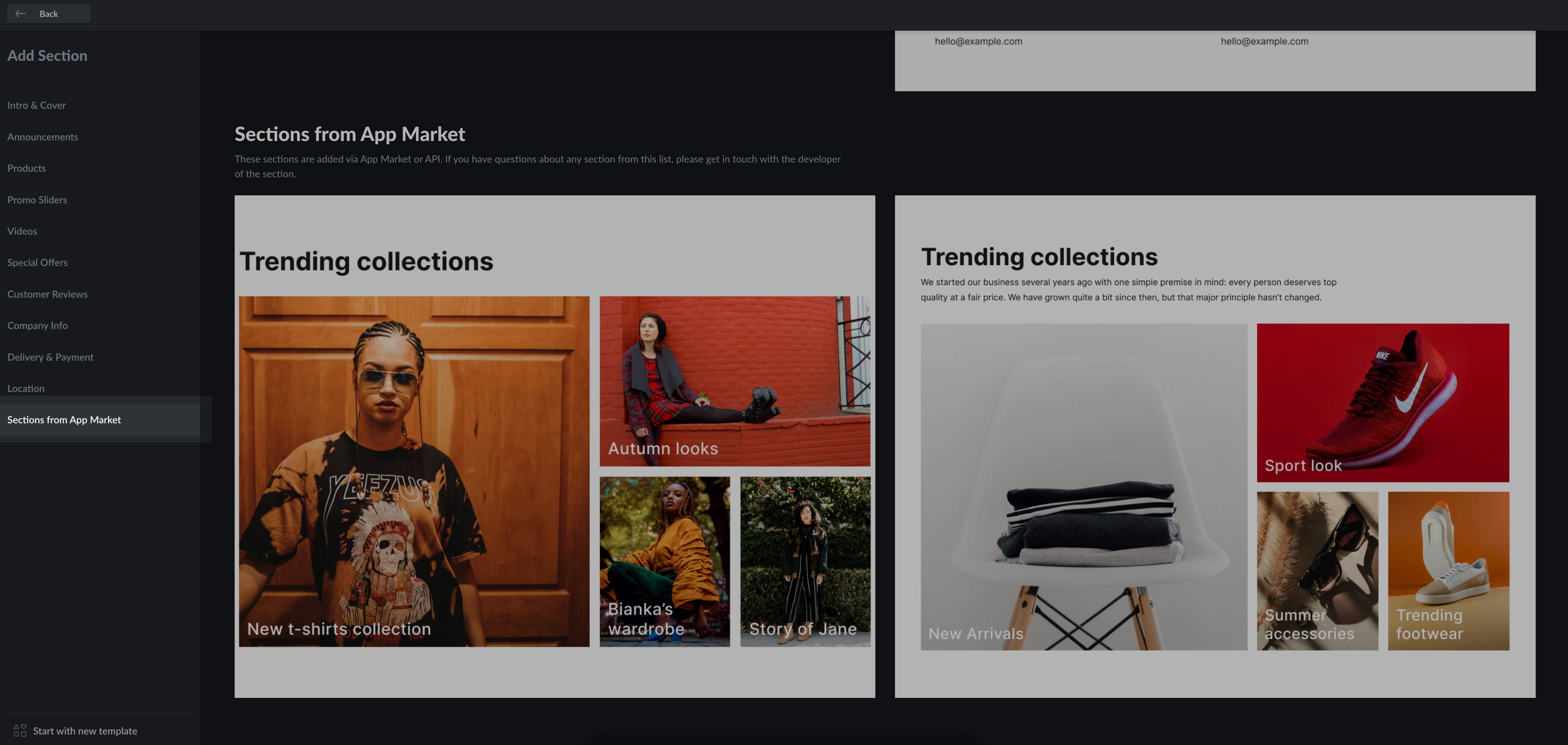
To see all available custom sections, in the editor, click **+ Add section****,** then click on the **Sections from App Market** in the left menu:
Custom sections, when built without a theme, are always available in the editor, even if a user applied a custom Site theme.
### Learn project structure without themes
The diagram below shows the folder structure of a project with one custom section:
{% @mermaid/diagram content="block-beta
columns 15
z\["Crane project folder"]:15
a\["Crane app"]:13
b\["node\_modules"]
style b fill:#696
c\["packages"]
style c fill:#696
d\["sections"]:12
f\["packages"]
space:2
l\["assets"]
m\["component"]
n\["entity"]
o\["settings"]:3
p\["showcases"]:2
q\["client.ts"]
style q fill:#696
r\["server.ts"]
style r fill:#696
k\["type.ts"]
style k fill:#696
i\["Section.vue"]
style i fill:yellow
x\["crane-config.json"]
style x fill:yellow
space:5
gg\["content.ts"]
ff\["design.ts"]
dd\["translations.ts"]
style gg fill:yellow
style ff fill:yellow
style dd fill:yellow
ss\["1.ts"]
style ss fill:yellow
aa\["translations.ts"]
style aa fill:yellow" fullWidth="true" %}
Files and folders marked as **green** are internal; they shouldn't be touched.
Files marked with the **yellow** color are the ones you interact with:
* **../packages/crane-config.json** contains keys from your Ecwid app required for deploying the project.
* **../Section.vue** is the main file with the code that builds a section on the storefront.
* **../settings/content.ts** contains the content settings visible to the store owner in the Site editor. For example, such settings allow changing texts and images in the section.
* **../settings/design.ts** contains the design settings allowing the store owner to customize the content's colors, fonts, etc.
* **../settings/translations.ts** contains texts and translations for content and design settings visible in the Site editor.
* **../showcases/1.ts** sets content/design settings to define how the section preview looks. If you want to add multiple showcases for your section, add more files to the same folder. For example, **../2.ts**.
* **../showcases/translations.ts** contains texts and translations for the showcase files.
We recommend getting an Ecwid-built example section and using it to learn all the file and code dependencies.
### Start building sections
Now that you know how custom sections can work without theme, jump into building your own sections: [Quickstart with custom sections without building Site themes](/site-themes/develop-custom-sections/quickstart-with-custom-sections-without-building-site-themes.md)
---
# Agent Instructions
This documentation is published with GitBook. GitBook is the documentation platform designed so that both humans and AI agents can read, navigate, and reason over technical content effectively. Learn more at gitbook.com.
## Querying This Documentation
If you need additional information that is not directly available in this page, you can query the documentation by asking a question.
Perform an HTTP GET request on the following URL with the `ask` and `goal` query parameters:
```
GET https://docs.ecwid.com/site-themes/develop-custom-sections/how-to-use-sections-without-site-themes.md?ask=&goal=
```
`ask` is the immediate question: it should be specific, self-contained, and written in natural language.
`goal` is what the user is ultimately trying to achieve, the reason they need the answer. Sharing it helps GitBook give you a better, more relevant answer. A goal is most helpful when it describes the outcome the user wants rather than restating the question. For example, with `ask=how do I create an API token`, a goal like `automate deployments from our CI pipeline` lets GitBook tailor the answer to that use case.
The response will contain a direct answer to the question and relevant excerpts and sources from the documentation.
Use this mechanism when the answer is not explicitly present in the current page, you need clarification or additional context, or you want to retrieve related documentation sections.